# Homeassistant

Homeassistant相關

# Homeassistant - 安裝bitwarden密碼管理器

#### **運行環境**

- **HA安裝在Synology VM上**

#### **安裝vaultwarden**

**附加元件內搜尋vaultwarden並安裝關閉SSL選項後啟動**

[![image.png](https://note.homesitetw.com/uploads/images/gallery/2025-06/scaled-1680-/3S7image.png)](https://note.homesitetw.com/uploads/images/gallery/2025-06/3S7image.png)

#### **修改設定**  


**瀏覽器輸入`http://ip:7277/admin`，admin token在啟動日誌內**

**修改網址**

[![image.png](https://note.homesitetw.com/uploads/images/gallery/2025-06/scaled-1680-/pO4image.png)](https://note.homesitetw.com/uploads/images/gallery/2025-06/pO4image.png)

**修改token**

[![image.png](https://note.homesitetw.com/uploads/images/gallery/2025-06/scaled-1680-/h9Jimage.png)](https://note.homesitetw.com/uploads/images/gallery/2025-06/h9Jimage.png)

#### **Synology設定反向代理**

**synology申請ssl憑證後使用內建反向代理**

[![image.png](https://note.homesitetw.com/uploads/images/gallery/2025-06/scaled-1680-/xmhimage.png)](https://note.homesitetw.com/uploads/images/gallery/2025-06/xmhimage.png)

**瀏覽器輸入`https://XXX.com:7277`**

# Homeassistant 安裝Zigbee2MQTT

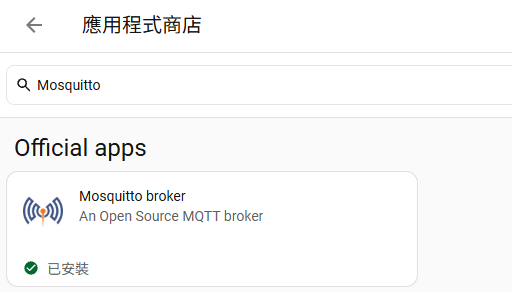
#### <span style="color: rgb(0, 0, 0);">**安裝 Mosquitto (MQTT Broker)**</span>

<span style="color: rgb(0, 0, 0);">**在應用程式商店安裝Mosquitto，啟動後確認沒問題**</span>

[![image.png](https://note.homesitetw.com/uploads/images/gallery/2026-10/scaled-1680-/8jAimage.png)](https://note.homesitetw.com/uploads/images/gallery/2026-10/8jAimage.png)

#### <span style="color: rgb(0, 0, 0);">**安裝 Zigbee2MQTT**</span>

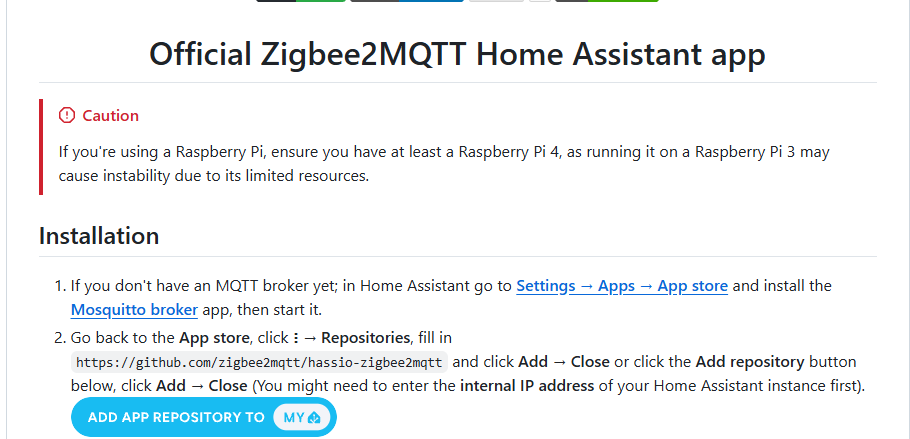
<span style="color: rgb(0, 0, 0);">**Zigbee2MQTT屬於第三方套件，先到[zigbee2mqtt套件頁面](https://github.com/zigbee2mqtt/hassio-zigbee2mqtt?ref=spacen.io)點選ADD APP REPOSITORY**</span>

#### <span style="color: rgb(0, 0, 0);">**[![image.png](https://note.homesitetw.com/uploads/images/gallery/2026-10/scaled-1680-/PZ8image.png)](https://note.homesitetw.com/uploads/images/gallery/2026-10/PZ8image.png)**</span>

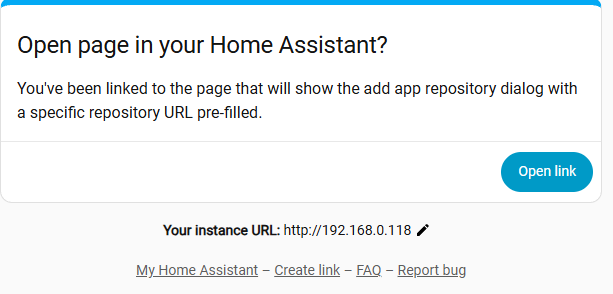
<span style="color: rgb(0, 0, 0);">**URL確認是本機HA的**</span>

[![image.png](https://note.homesitetw.com/uploads/images/gallery/2026-10/scaled-1680-/MFGimage.png)](https://note.homesitetw.com/uploads/images/gallery/2026-10/MFGimage.png)

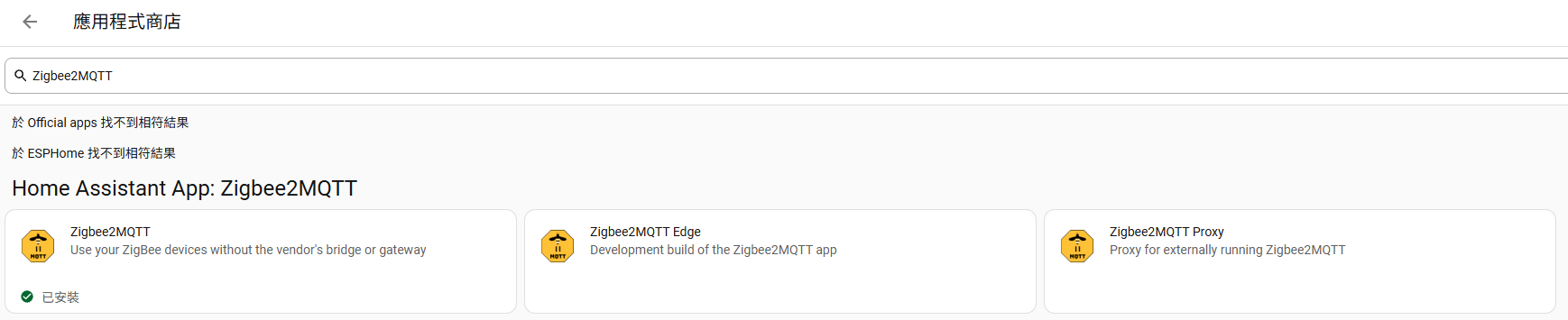
<span style="color: rgb(0, 0, 0);">**在應用程式商店安裝Zigbee2MQTT**</span>

[![image.png](https://note.homesitetw.com/uploads/images/gallery/2026-10/scaled-1680-/3I6image.png)](https://note.homesitetw.com/uploads/images/gallery/2026-10/3I6image.png)

#### <span style="color: rgb(0, 0, 0);">**設定Zigbee2MQTT**</span>

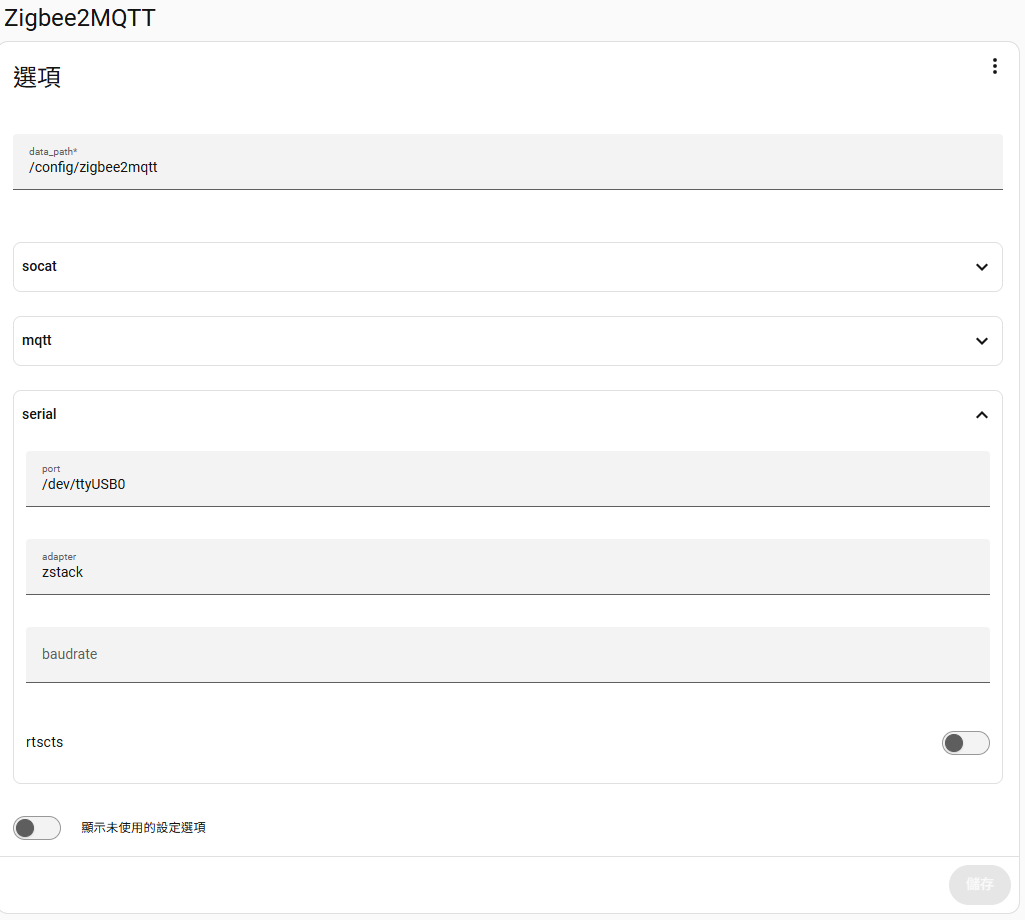
<span style="color: rgb(0, 0, 0);">**我是使用USB Zigbee裝置，所以在serial的port填入USB裝置的路徑，adapter大部分填zstack就可以**</span>

[![image.png](https://note.homesitetw.com/uploads/images/gallery/2026-10/scaled-1680-/DTkimage.png)](https://note.homesitetw.com/uploads/images/gallery/2026-10/DTkimage.png)

<span style="color: rgb(0, 0, 0);">**可以在系統硬體找到你的USB路徑**</span>

[![image.png](https://note.homesitetw.com/uploads/images/gallery/2026-10/scaled-1680-/1xIimage.png)](https://note.homesitetw.com/uploads/images/gallery/2026-10/1xIimage.png)

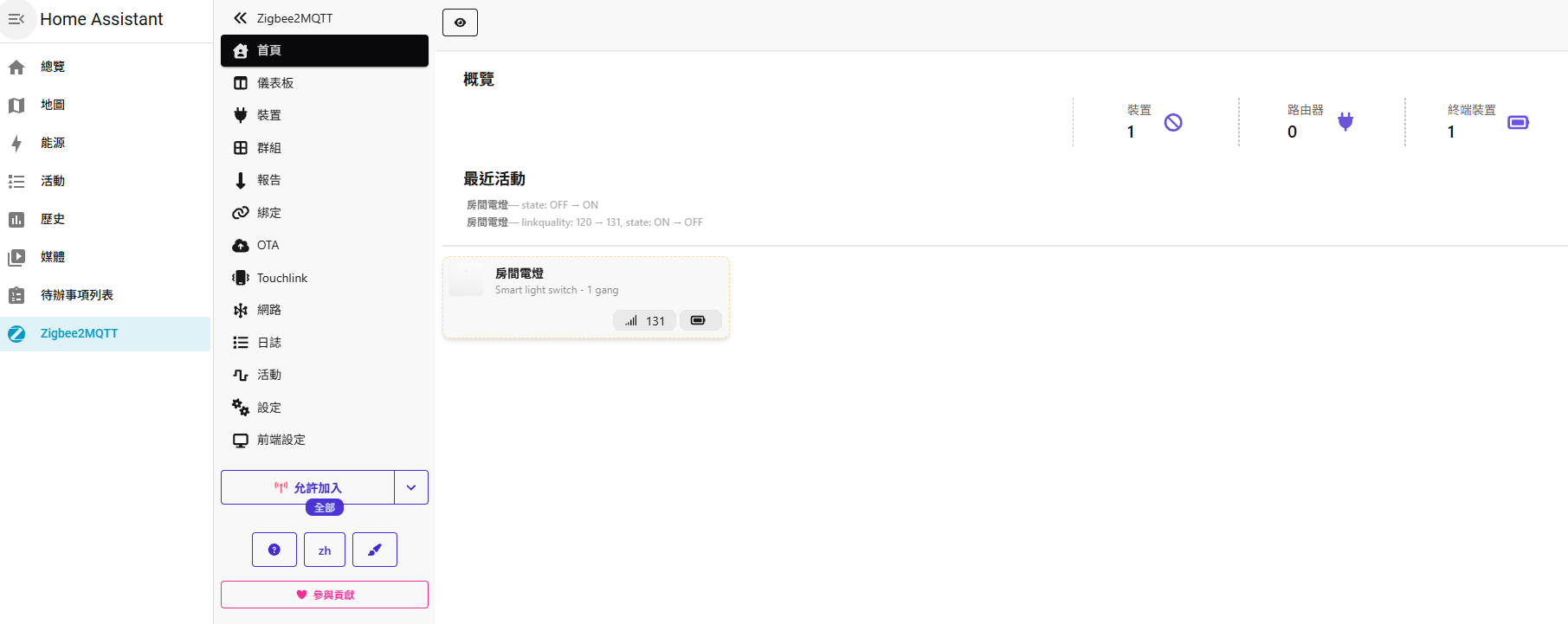
<span style="color: rgb(0, 0, 0);">**啟動後即可加入你的Zigbee裝置**</span>

[![image.png](https://note.homesitetw.com/uploads/images/gallery/2026-10/scaled-1680-/UKHimage.png)](https://note.homesitetw.com/uploads/images/gallery/2026-10/UKHimage.png)

# Homeassistant 安裝 Xiaomi Miot

<span style="color: rgb(0, 0, 0);">**Xiaomi Miot 是一個用於 Home Assistant (HA) 的熱門第三方整合套件，能透過小米的 MIoT-Spec 協定自動將大多數小米米家智慧設備（Wi-Fi、藍牙、Zigbee 裝置）接入系統中**</span>

---

#### <span style="color: rgb(0, 0, 0);">**安裝HACS**</span>

<p class="callout info"><span style="color: rgb(0, 0, 0);">**Home Assistant 2026.11後會整合HACS**</span></p>

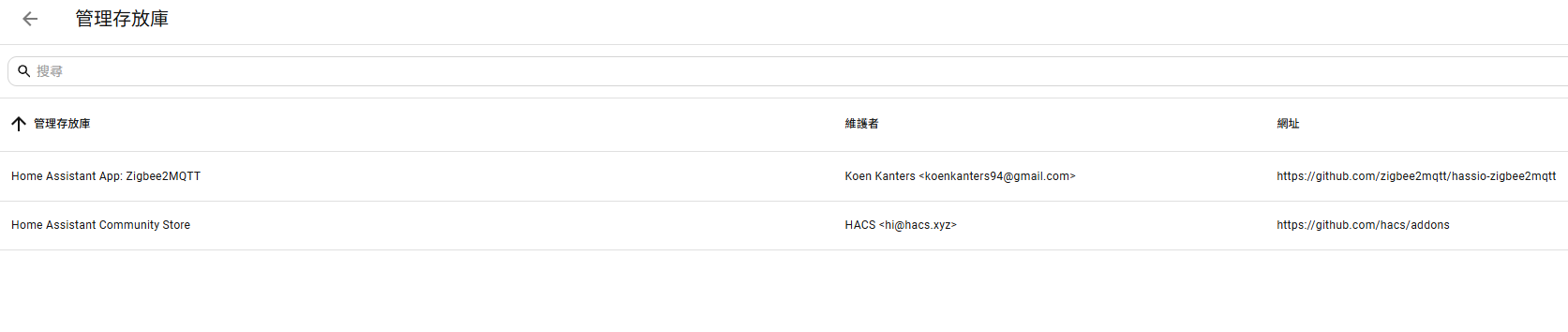
<span style="color: rgb(0, 0, 0);">**先在HA內安裝HACS，進入[HACS官網](https://www.hacs.xyz/docs/use/download/download/)，下方有連結加入HA 儲存庫中**</span>

```
https://github.com/hacs/addons
```

[![image.png](https://note.homesitetw.com/uploads/images/gallery/2026-10/scaled-1680-/EI3image.png)](https://note.homesitetw.com/uploads/images/gallery/2026-10/EI3image.png)
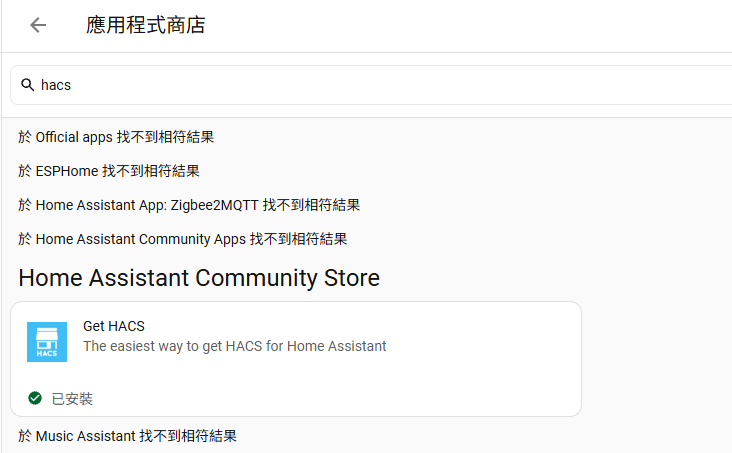
<span style="color: rgb(0, 0, 0);">**搜尋HACS安裝**</span>

[![image.png](https://note.homesitetw.com/uploads/images/gallery/2026-10/scaled-1680-/7hoimage.png)](https://note.homesitetw.com/uploads/images/gallery/2026-10/7hoimage.png)

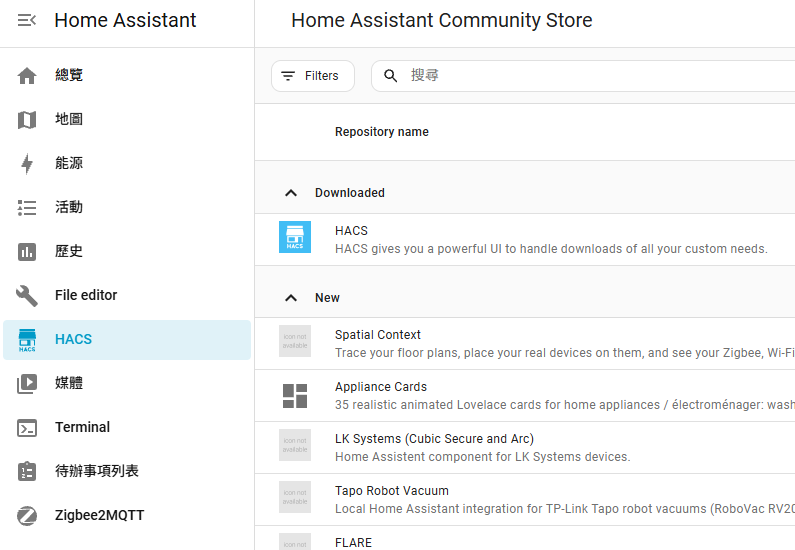
<span style="color: rgb(0, 0, 0);">**重啟HA後左側會顯示HACS側欄就完成安裝**</span>

[![image.png](https://note.homesitetw.com/uploads/images/gallery/2026-10/scaled-1680-/meMimage.png)](https://note.homesitetw.com/uploads/images/gallery/2026-10/meMimage.png)

#### <span style="color: rgb(0, 0, 0);">**安裝Xiaomi Miot**</span>

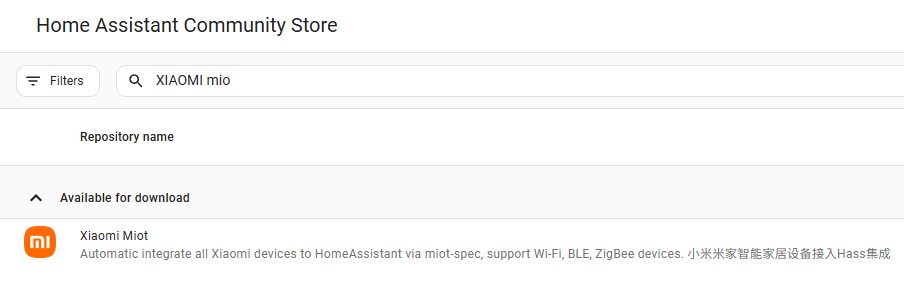
<span style="color: rgb(0, 0, 0);">**在HACS裡搜尋Xiaomi Miot安裝**</span>

[![image.png](https://note.homesitetw.com/uploads/images/gallery/2026-10/scaled-1680-/rQlimage.png)](https://note.homesitetw.com/uploads/images/gallery/2026-10/rQlimage.png)

<span style="color: rgb(0, 0, 0);">**若安裝有問題可以手動下載[hass-xiaomi-miot gitub](https://github.com/al-one/hass-xiaomi-miot)檔案解壓後上傳到`custom_components/xiaomi_miot`裡**</span>

<span style="color: #000000;">**重啟HA完成**</span>

#### <span style="color: rgb(0, 0, 0);">**設定Xiaomi Miot 加入實體**</span>

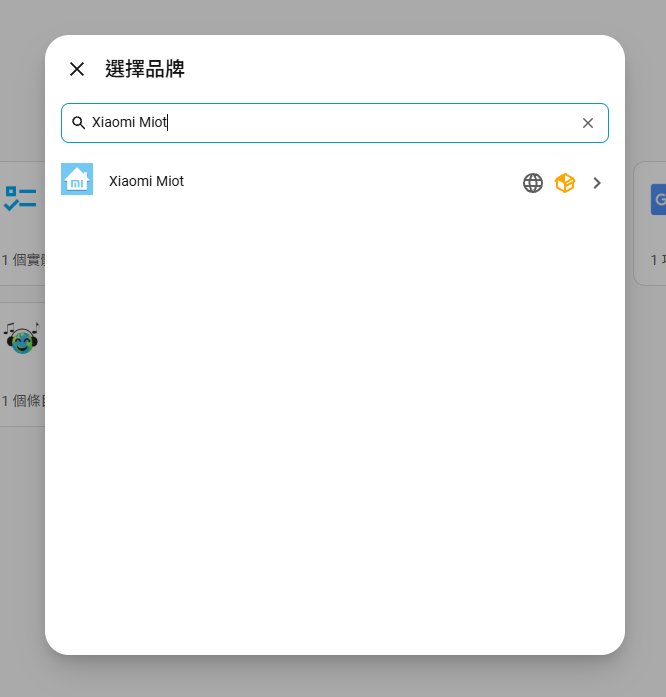
<span style="color: rgb(0, 0, 0);">**在裝置裡新增整合，選擇Xiaomi Miot**</span>

[![image.png](https://note.homesitetw.com/uploads/images/gallery/2026-10/scaled-1680-/T3mimage.png)](https://note.homesitetw.com/uploads/images/gallery/2026-10/T3mimage.png)

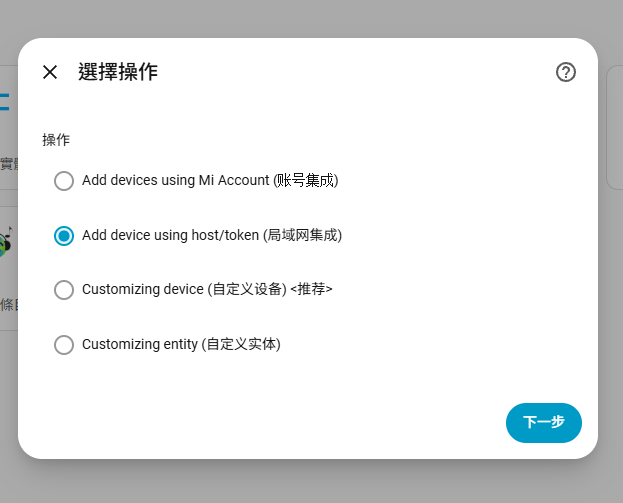
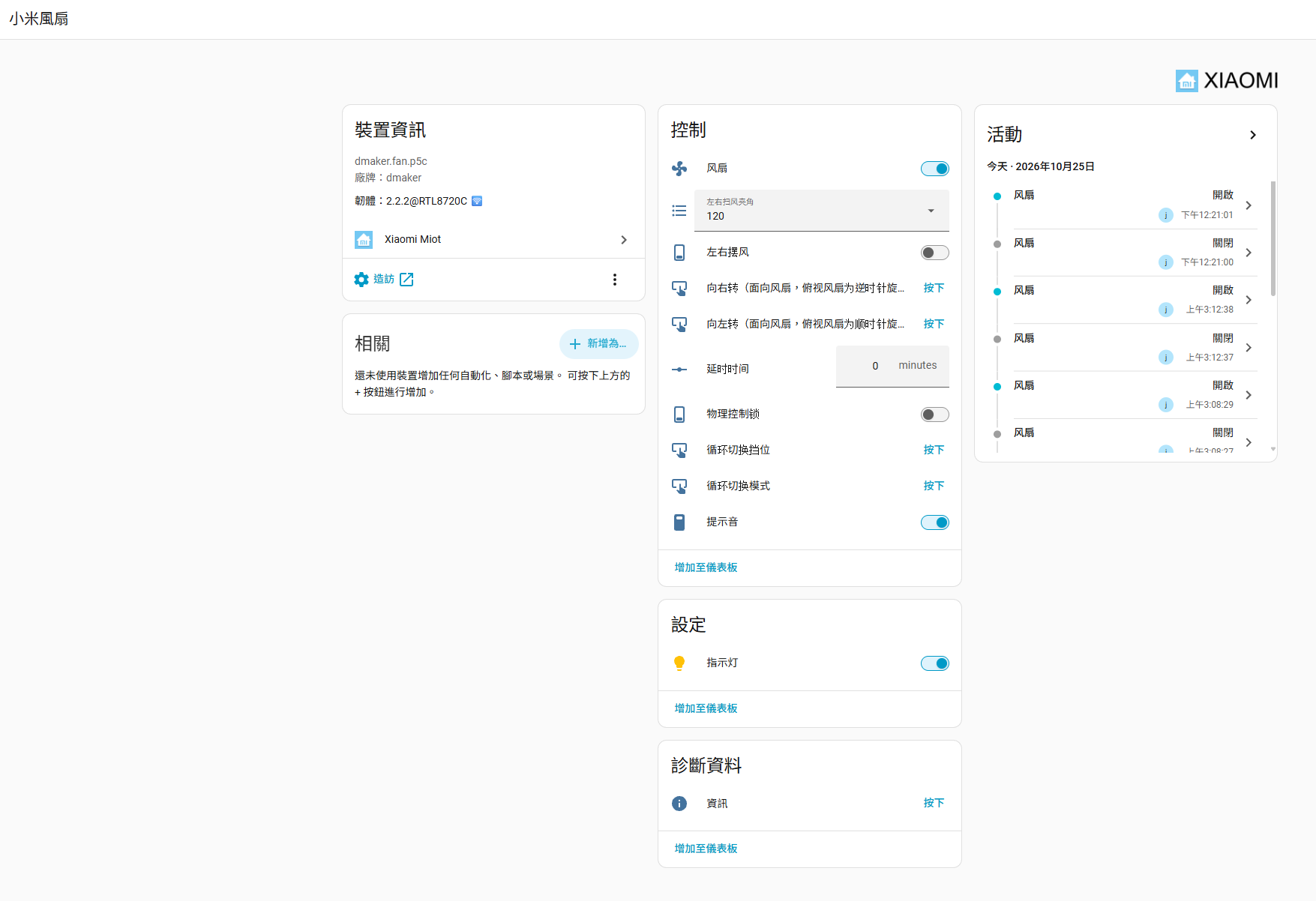
<span style="color: rgb(0, 0, 0);">**我是使用小米開關和風扇，都已連到WIFI，故選擇局域網集成方式加入**</span>

[![image.png](https://note.homesitetw.com/uploads/images/gallery/2026-10/scaled-1680-/qbTimage.png)](https://note.homesitetw.com/uploads/images/gallery/2026-10/qbTimage.png)

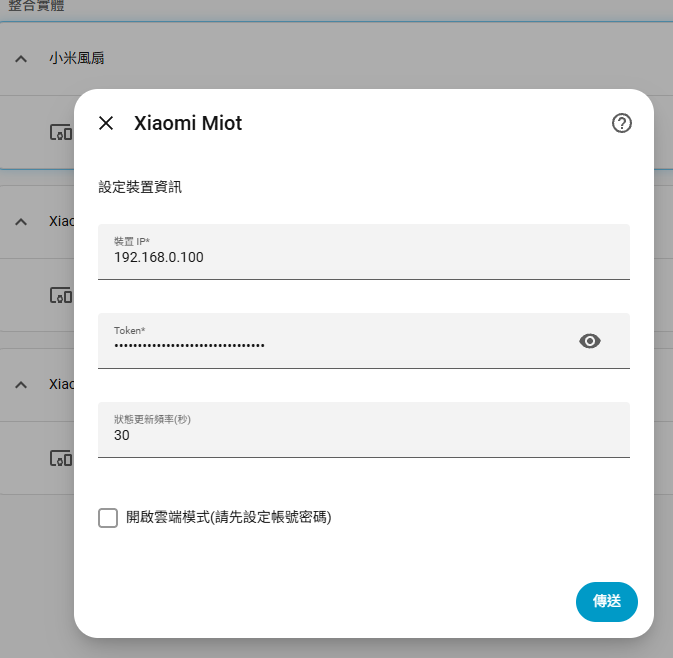
<span style="color: rgb(0, 0, 0);">**輸入小米設備的IP和token即可加入**</span>

[![image.png](https://note.homesitetw.com/uploads/images/gallery/2026-10/scaled-1680-/0olimage.png)](https://note.homesitetw.com/uploads/images/gallery/2026-10/0olimage.png)

[![image.png](https://note.homesitetw.com/uploads/images/gallery/2026-10/scaled-1680-/25limage.png)](https://note.homesitetw.com/uploads/images/gallery/2026-10/25limage.png)
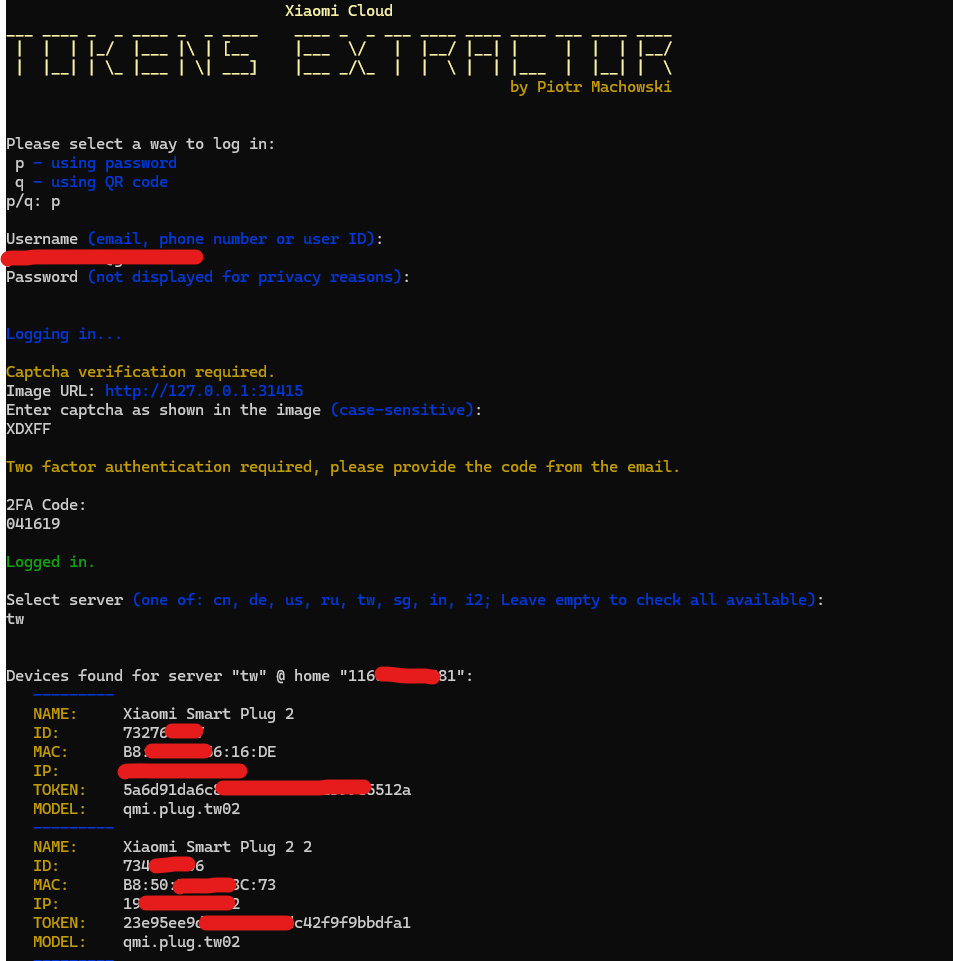
#### <span style="color: rgb(0, 0, 0);">**獲取Token方式**</span>

<span style="color: #000000;">**我使用[github上的Xiaomi-cloud-tokens-extractor工具](https://github.com/PiotrMachowski/Xiaomi-cloud-tokens-extractor)來獲取Token**</span>

<span style="color: #000000;">**小米裝置記得都要先加入米家APP**</span>

<span style="color: #000000;">**陸板或台版設備再自行選擇server地區**</span>

[![image.png](https://note.homesitetw.com/uploads/images/gallery/2026-10/scaled-1680-/nY2image.png)](https://note.homesitetw.com/uploads/images/gallery/2026-10/nY2image.png)