# PVE LXC安裝PNETLAB
**PVE內安裝PNETLAB可建立VM正常安裝,但是虛擬機在PVE裡經過多層虛擬化效能不佳,故使用CT安裝來接近本機效能**
##### **運行環境**
- **PVE 7**
- **LXC ubuntu-18.04**
##### **PVE設定**
**確認PVE已安裝openvswitch-switch**
```
systemctl status openvswitch-switch
```
**若未安裝執行**
```
apt update
apt install openvswitch-switch
```
##### **建立CT**
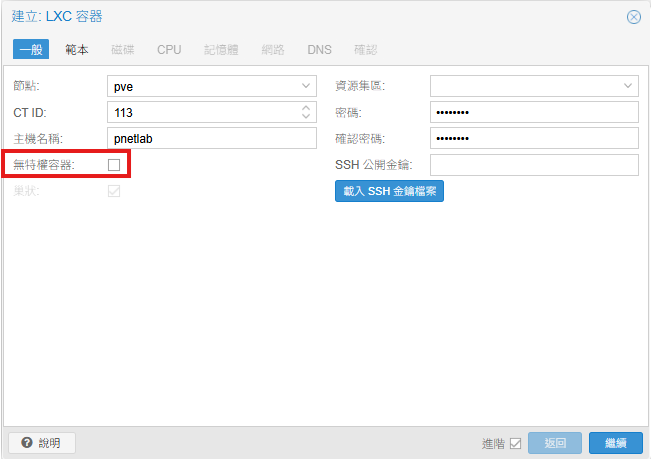
**取消勾選`無特權容器`,範本選擇`ubuntu-18.04`,建立容器後選擇不開機**
[](https://note.homesitetw.com/uploads/images/gallery/2025-09/kB7image.png)
**進入PVE SHELL修改LXC設定,編輯`/etc/pve/lxc/.conf`,新增以下設定後啟動CT**
```
features: nesting=1
lxc.cgroup2.devices.allow: c 10:200 rwm
lxc.mount.entry: /dev/net/tun dev/net/tun none bind,create=file
lxc.cgroup2.devices.allow: c 10:232 rwm
lxc.mount.entry: /dev/kvm dev/kvm none bind,create=file
```
##### **安裝PNETLAB**
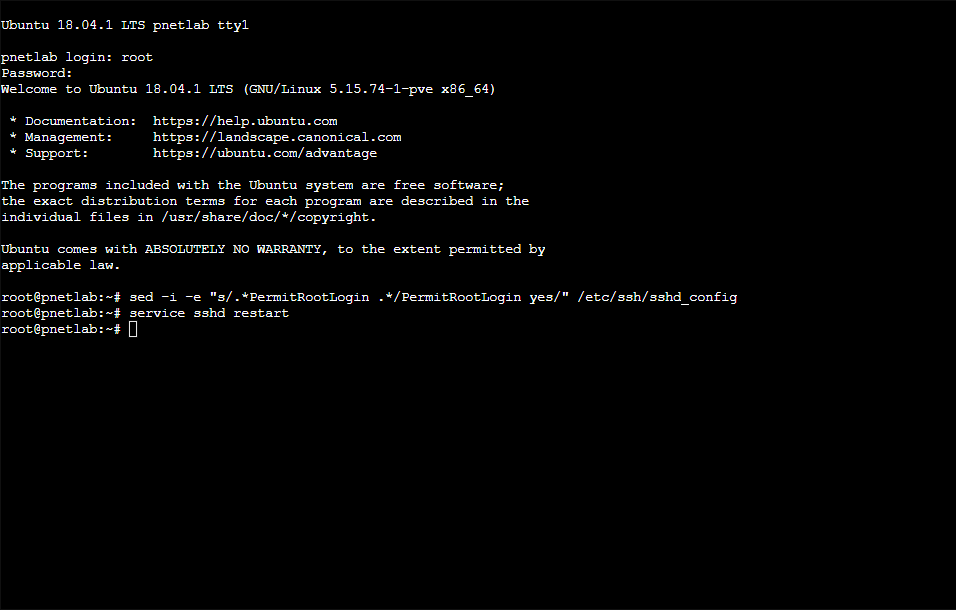
**PVE網頁上開啟CT視窗,修改允許root SSH登入**
```
sed -i -e "s/.*PermitRootLogin .*/PermitRootLogin yes/" /etc/ssh/sshd_config
service sshd restart
```
[](https://note.homesitetw.com/uploads/images/gallery/2025-09/GLvimage.png)
**重新登入PNETLAB,編輯`/etc/apt/sources.list`新增repository**
```
deb [trusted=yes] http://repo.pnetlab.com ./
```
**開始安裝**
```
echo "nameserver 8.8.8.8" > /etc/resolv.conf
apt-get update
apt-get purge netplan.io
apt-get install pnetlab -y
```
**安裝到這裡時會卡住,因為PNETLAB和CT網路設定會衝突**
```
To activate the new configuration, you need to run:
systemctl restart apache2
Considering dependency proxy for proxy_html:
Enabling module proxy.
Considering dependency xml2enc for proxy_html:
Enabling module xml2enc.
Enabling module proxy_html.
To activate the new configuration, you need to run:
systemctl restart apache2
```
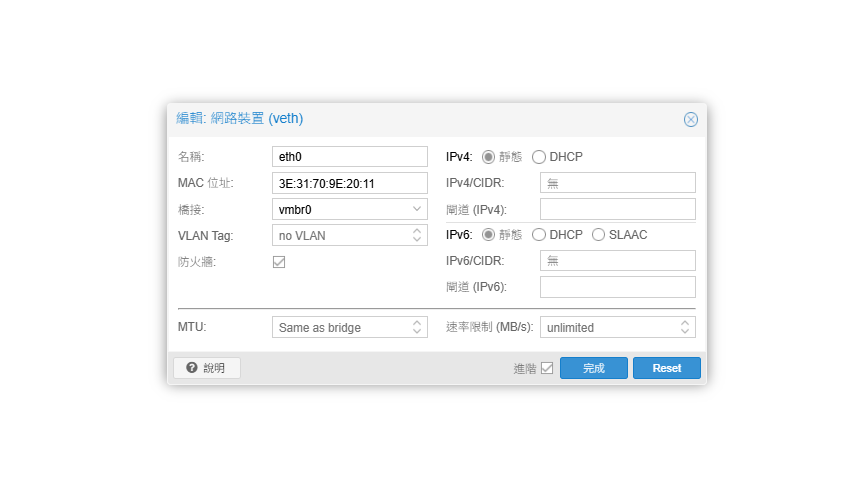
**將CT的網路設定靜態並移除IP後重啟CT**
[](https://note.homesitetw.com/uploads/images/gallery/2025-09/Qwkimage.png)
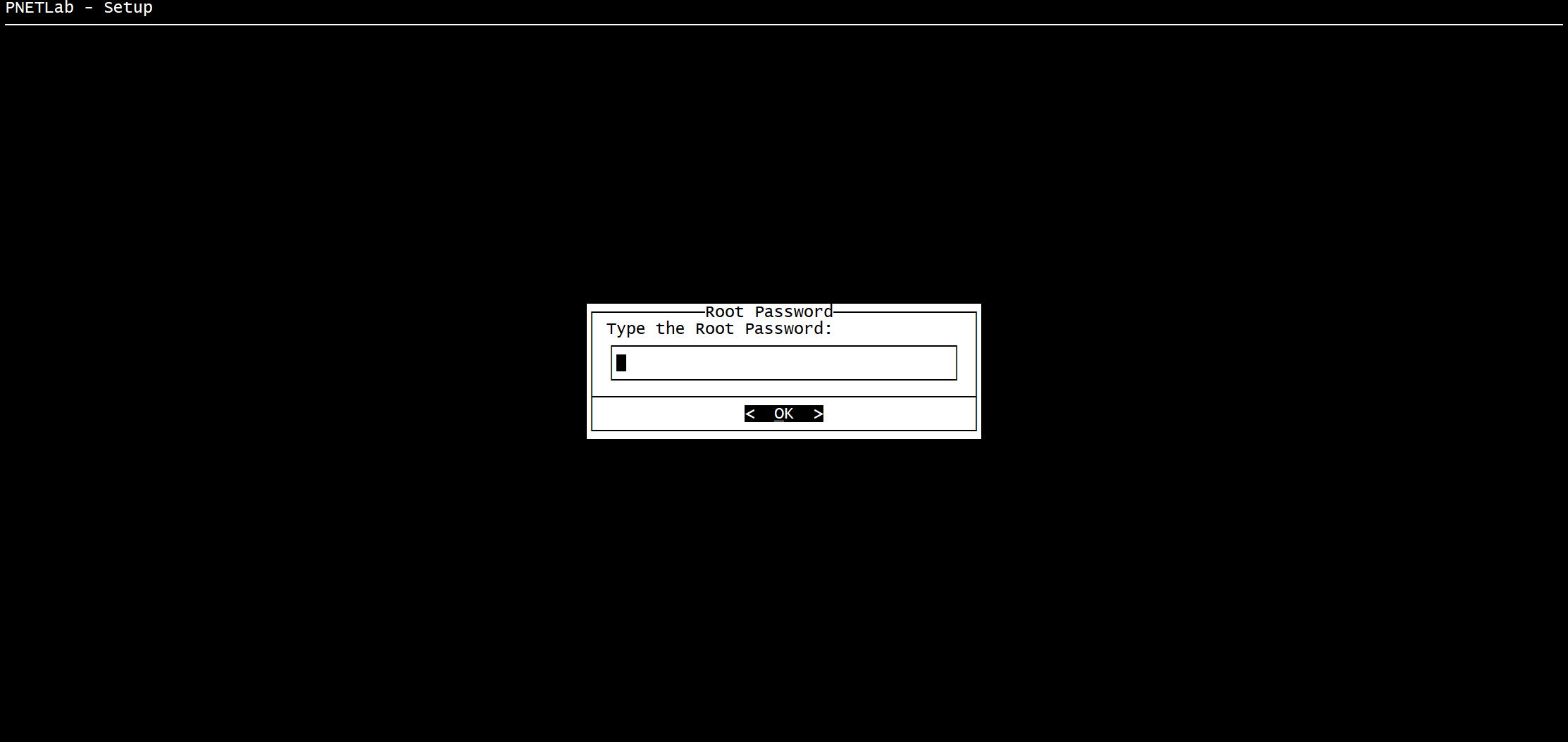
**重新登入PNETLAB後開始初始化安裝,完成後會再次重啟**
[](https://note.homesitetw.com/uploads/images/gallery/2025-09/5Zaimage.png)
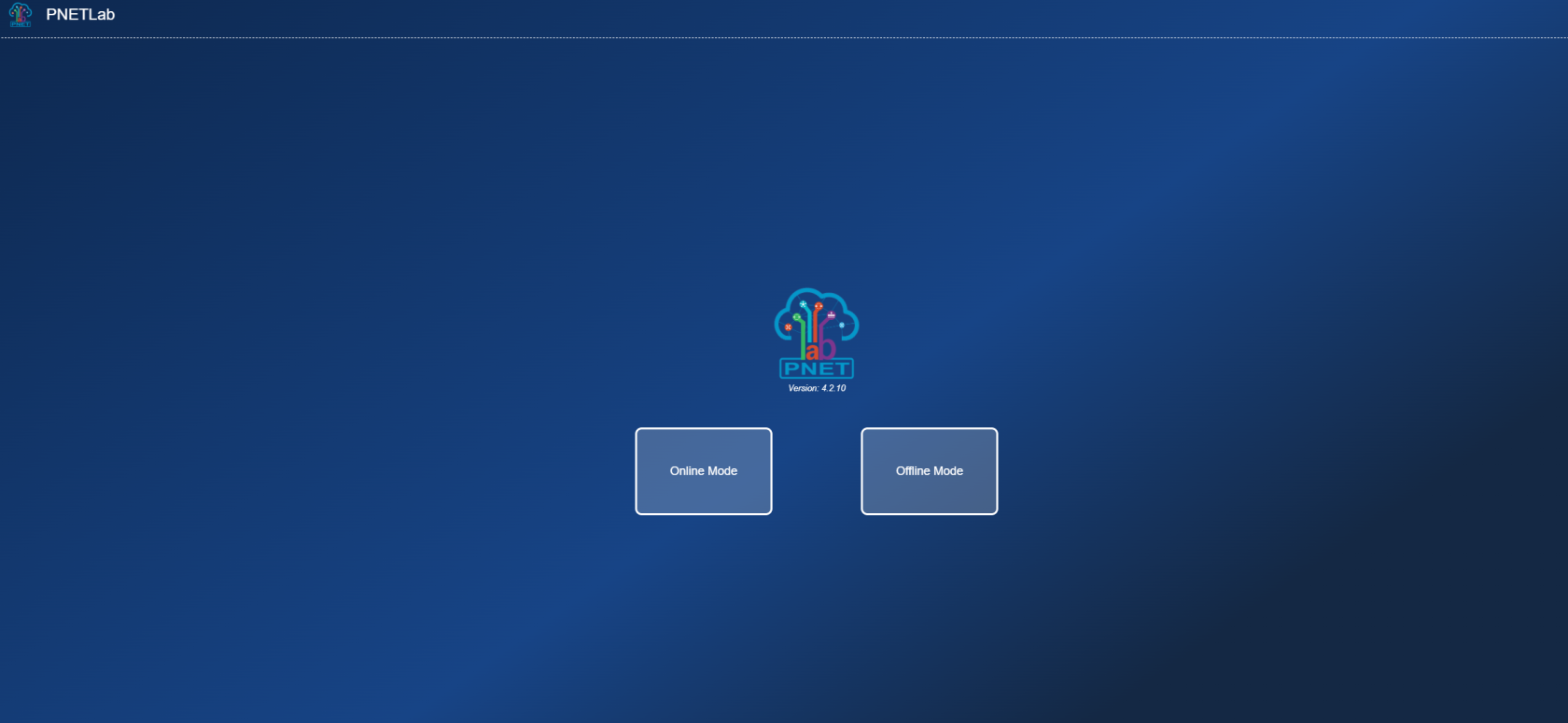
**重啟後確認可進入PNETLAB網頁**
[](https://note.homesitetw.com/uploads/images/gallery/2025-09/G1Wimage.png)
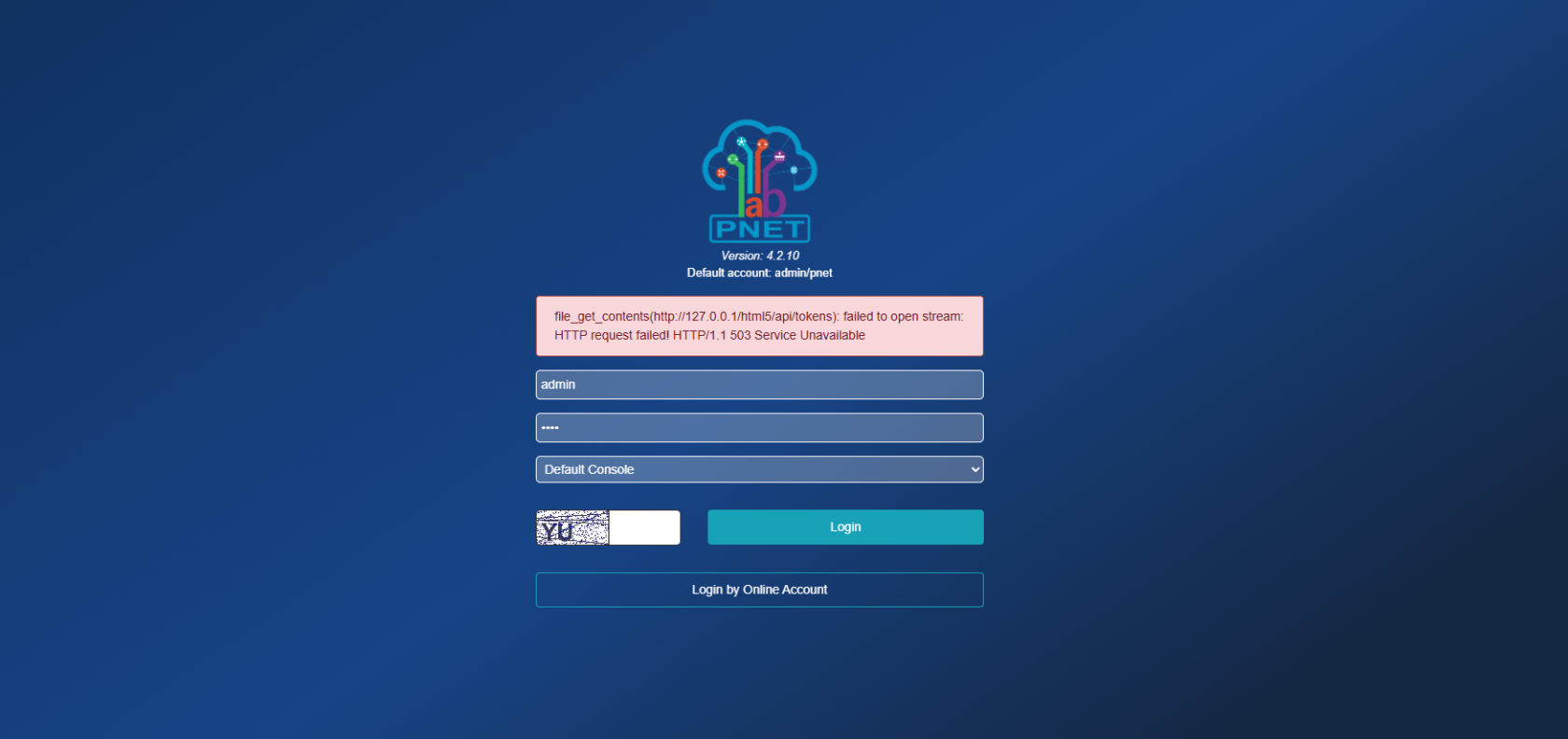
**若出現file\_get\_contents訊息**
**file\_get\_contents(http://127.0.0.1/html5/api/tokens): failed to open stream: HTTP request failed! HTTP/1.1 5XX Service Unavailable**
[](https://note.homesitetw.com/uploads/images/gallery/2025-09/LQximage.png)
**於PNETLAB內修正**
```
sed -i '/skip_ssl/d' /etc/mysql/mysql.conf.d/mysqld.cnf
echo "skip_ssl" >> /etc/mysql/mysql.conf.d/mysqld.cnf
service mysql restart
```
**qemu啟動需安裝net-tools**
```
apt install net-tools
```
##### **測試虛擬機**
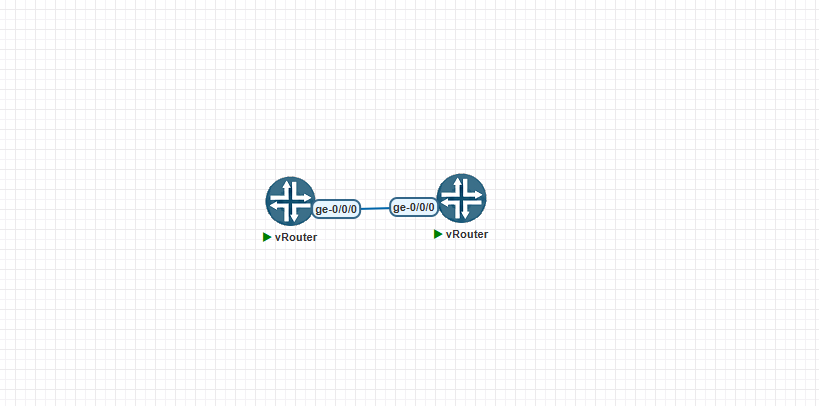
**測試建立的虛擬機可正常執行**
[](https://note.homesitetw.com/uploads/images/gallery/2025-09/8fNimage.png)
**若啟動失敗,觀察詳細報錯紀錄**
```
tail -f /opt/unetlab/data/Logs/unl_wrapper.txt
```