**immich是一套開源的相簿系統,可當作替代Google相簿,提供手機APP,並有地圖標記和人臉辨識等功能**
[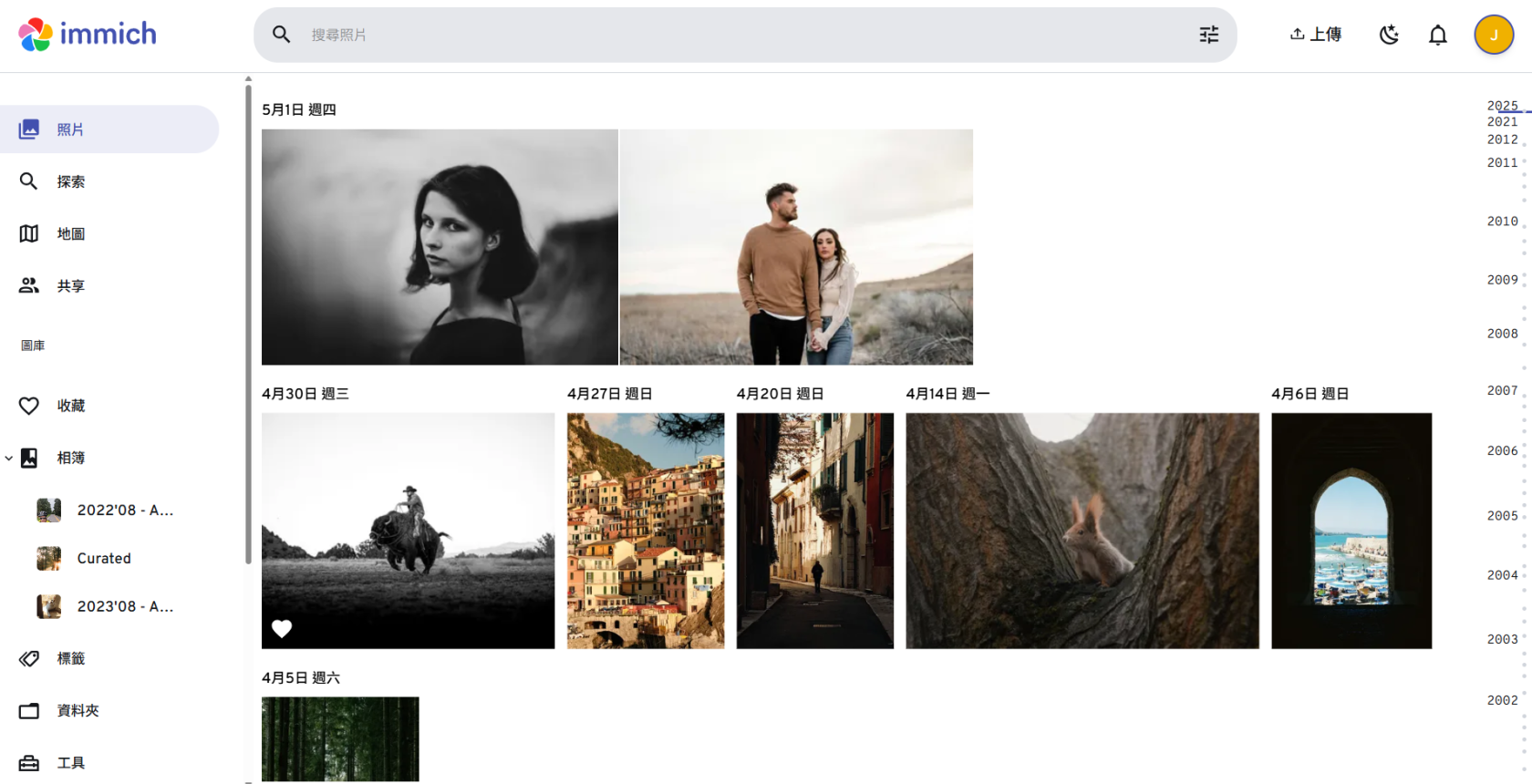](https://note.homesitetw.com/uploads/images/gallery/2025-10/GH9image.png) **官方Demo** ##### **運行環境** - **DSM 7.1** ##### **安裝immich** **確認已安裝[Portainer](https://note.homesitetw.com/books/synology/page/synology-portainer-docker#bkmrk-%E5%AE%89%E8%A3%9Ddocker%E5%92%8Cportainer),在docker資料夾新增`immich-app`,裡面新增`library`和`postgres`資料夾** [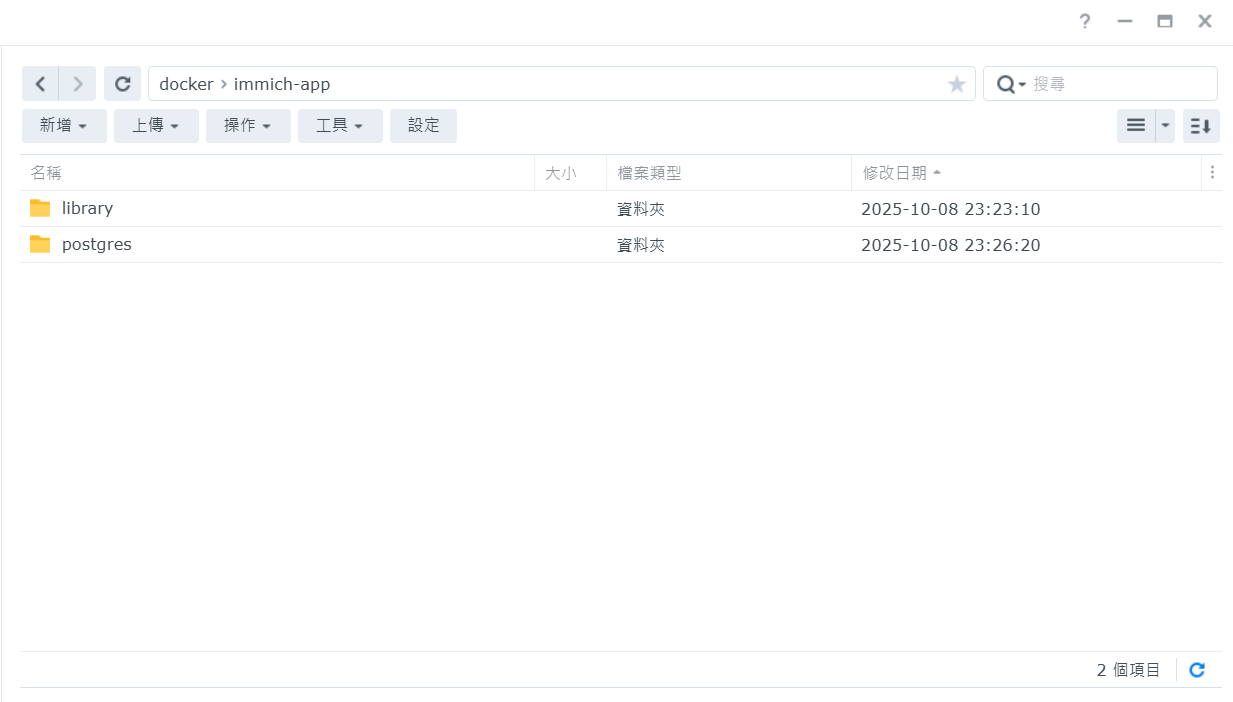](https://note.homesitetw.com/uploads/images/gallery/2025-10/zfKimage.png) **從官方下載docker-compose.yml和.env檔案** ``` https://github.com/immich-app/immich/releases/latest/download/docker-compose.yml ``` ``` https://github.com/immich-app/immich/releases/latest/download/example.env ``` **修改下載的docker-compose.yml和.env檔案** **編輯`example.env`並改名為`.env`** ``` # You can find documentation for all the supported env variables at https://docs.immich.app/install/environment-variables # The location where your uploaded files are stored UPLOAD_LOCATION=/volume1/docker/immich-app/library # The location where your database files are stored. Network shares are not supported for the database DB_DATA_LOCATION=/volume1/docker/immich-app/postgres # To set a timezone, uncomment the next line and change Etc/UTC to a TZ identifier from this list: https://en.wikipedia.org/wiki/List_of_tz_database_time_zones#List # TZ=Asia/Taipei # The Immich version to use. You can pin this to a specific version like "v1.71.0" IMMICH_VERSION=release # Connection secret for postgres. You should change it to a random password # Please use only the characters `A-Za-z0-9`, without special characters or spaces DB_PASSWORD=postgres # The values below this line do not need to be changed ################################################################################### DB_USERNAME=postgres DB_DATABASE_NAME=immich ``` - **UPLOAD\_LOCATION和DB\_DATA\_LOCATION為剛剛在docker 內建立的資料夾的路徑** - **TZ改成Asia/Taipei** - **DB\_PASSWORD 密碼可自行更改** **進入Portainer,新增堆棧(Stack)** 將docker-compose.yml內容貼到**Stack編輯器,並上傳剛剛修改的`.env`檔案** [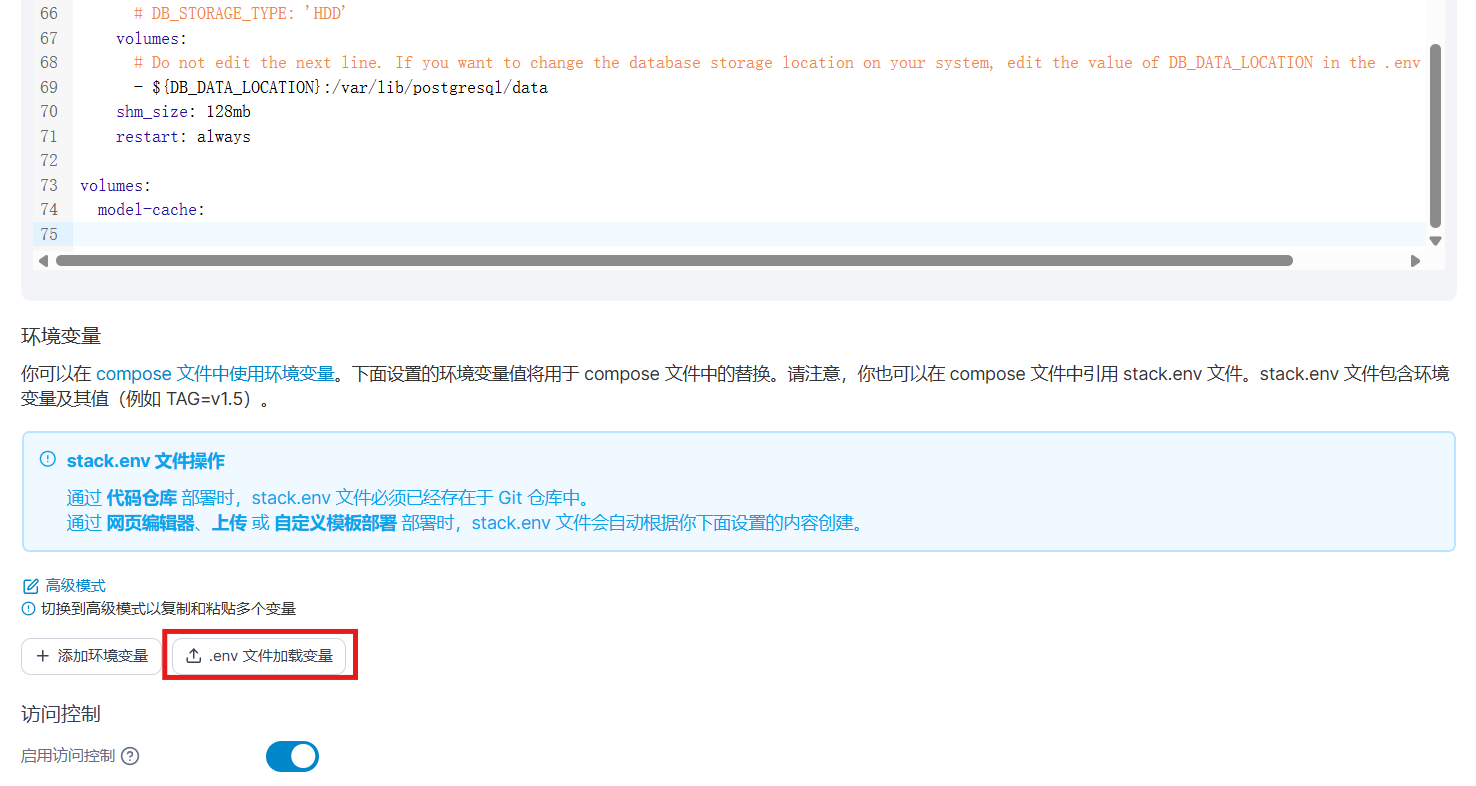](https://note.homesitetw.com/uploads/images/gallery/2025-10/17eimage.png) **上傳後確認以下環境變量正確,並將編輯器內的`- .env`改成`- stack.env`** [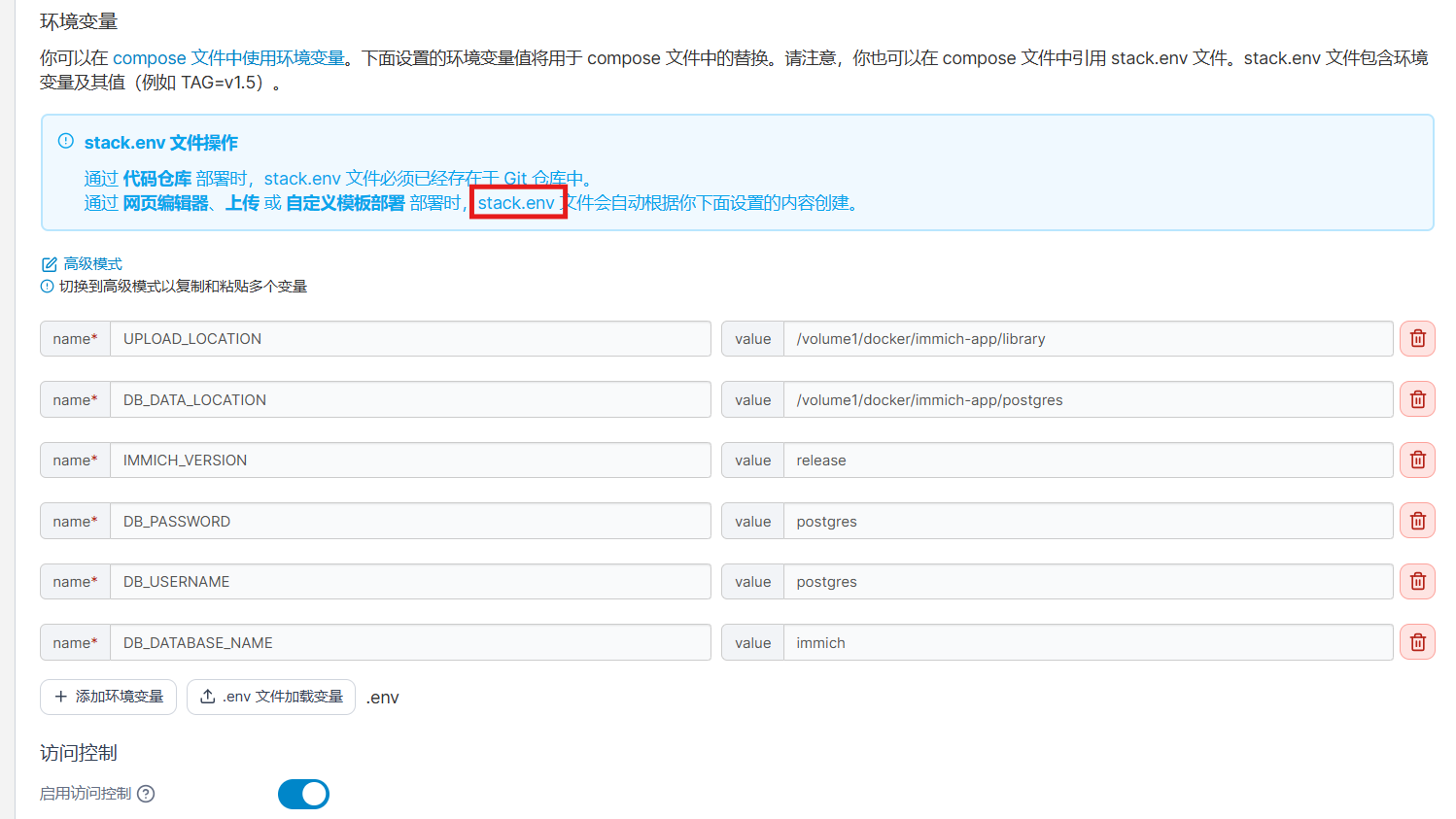](https://note.homesitetw.com/uploads/images/gallery/2025-10/jdfimage.png) [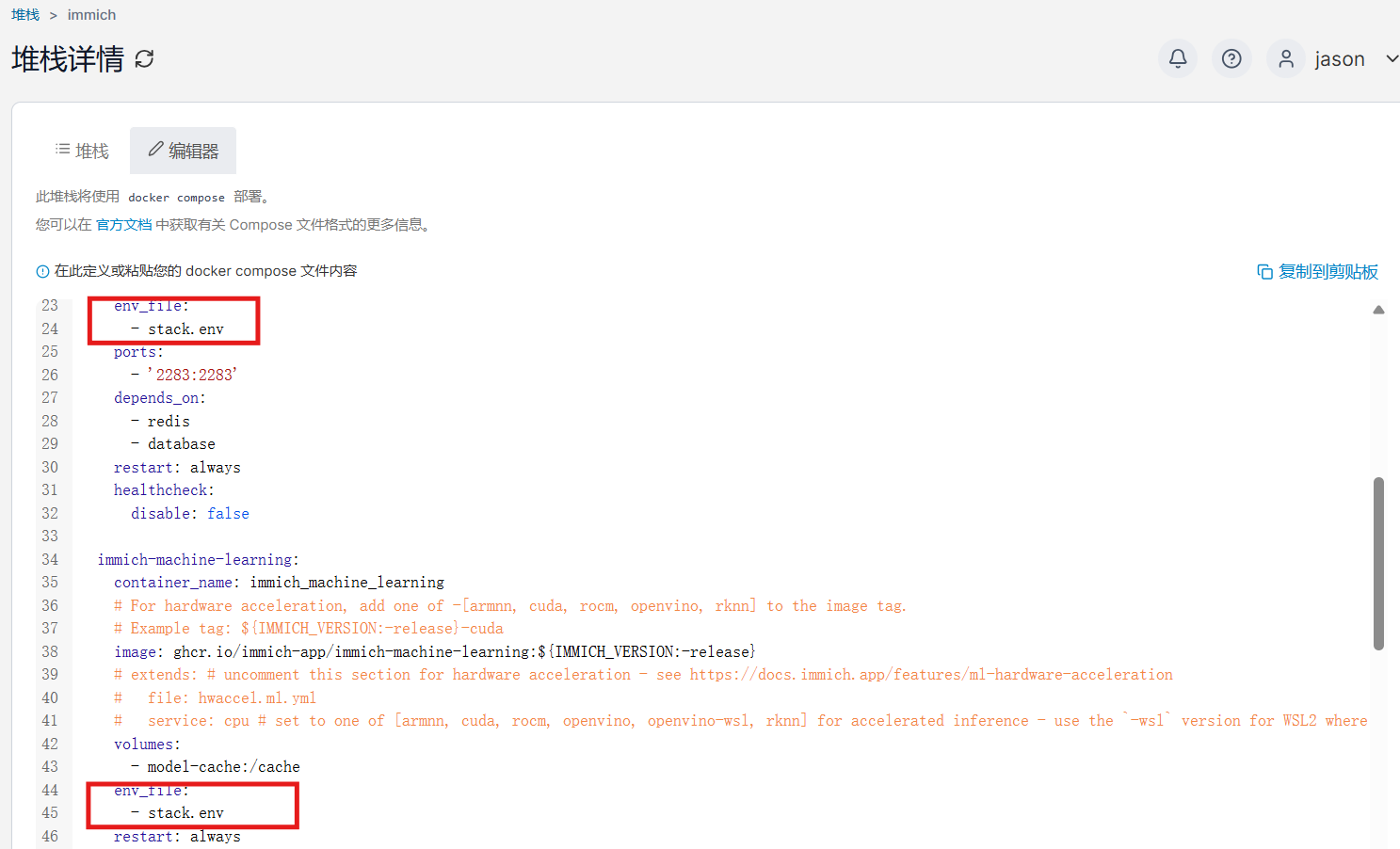](https://note.homesitetw.com/uploads/images/gallery/2025-10/wm9image.png) **修改完成後部屬,第一次下載容器需等待一段間,所有容器成功開啟後即可登入`http://192.168.0.250:2283/`初始化安裝**